
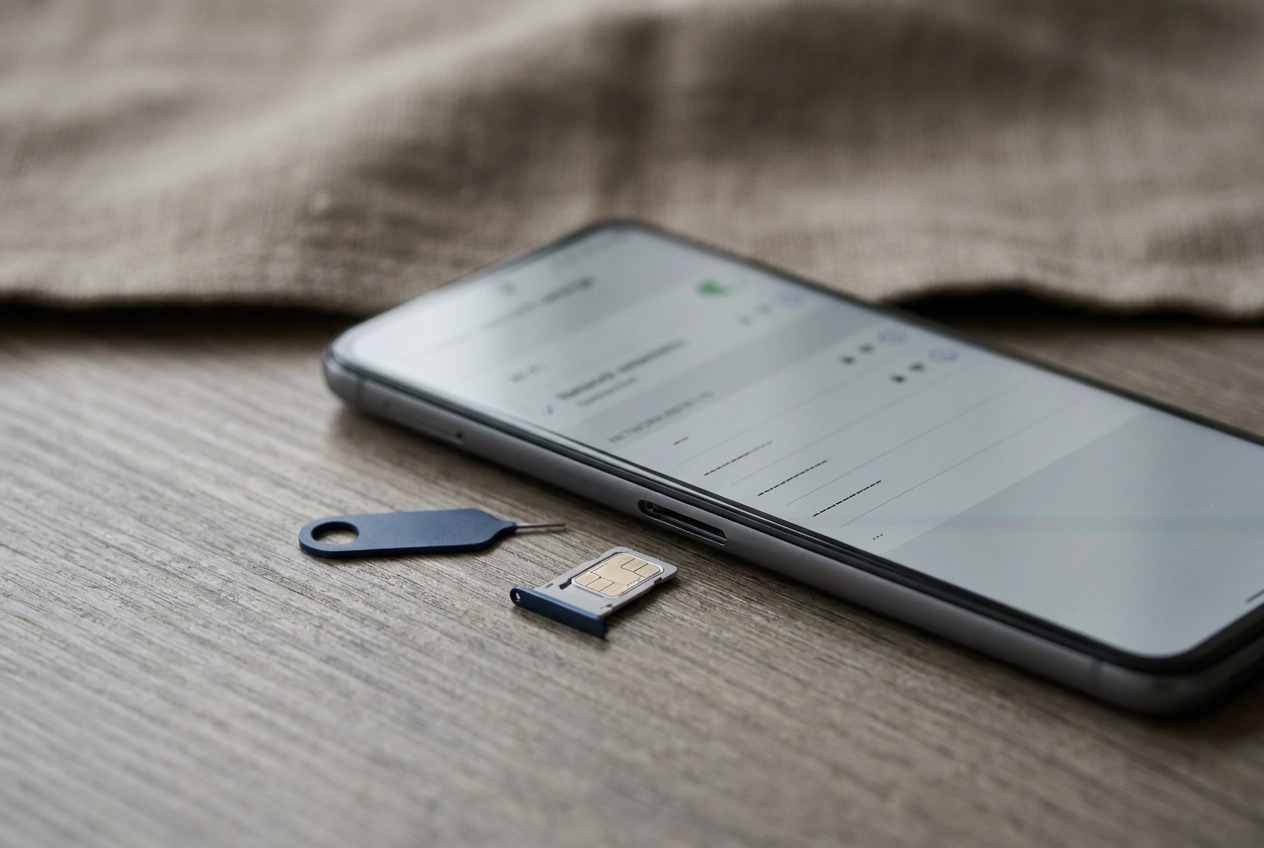

Two phone numbers, one handset? It sounds like a magic trick, but it is just dual SIM doing its quiet work. If you want to add an EzySim eSIM to the number you already use, you do not have to choose between your personal line, your work line, or an overseas number. With an eSIM Australia prepaid setup, you can keep your usual number live for calls and verification codes while an EzySim eSIM handles the data. The trick is not buying anything extra. It is knowing which line does what.
In this guide, we will walk through how two lines share one phone, how to get your phone ready, and how to set things up on both iPhone and Android. You will label your lines, pick the default data SIM, decide which line handles calls and SMS, and learn why verification codes should still arrive. We will also cover the switches that help prevent surprise charges and what to check when the wrong line picks up. By the end, you will see that dual SIM is really a settings job, and a manageable one.
How Two Lines Share One Phone
Think of it as two lines sharing one handset, each with a job. Your existing number stays live for incoming calls, SMS and verification codes; the EzySim eSIM carries mobile data.
Three settings decide everything: the default data line, the default voice and SMS line, and mobile data switching.
Treat the lines as separate accounts, each with its own balance, allowance and renewal date. Data on the eSIM never draws down the other line.
An eSIM Australia prepaid setup downloads in Settings, so no shop visit and no plastic SIM to wait for.
Still deciding what that data line should look like? Our prepaid mobile plans in Australia guide can help.
Before You Start: Getting Your Phone Ready for an eSIM in Australia
Start with the handset. Look for an EID in your phone’s About screen (iPhone) or SIM settings (Android), no EID means no eSIM support and no second line. It must also be carrier unlocked, or the EzySim profile won’t install. Picking a plan for that data line? Our guide to choosing a prepaid SIM card in Australia covers network, plan length and price.
Have your EzySim activation details, QR code or link, ready, and leave your existing SIM in its slot and switched on. Decide which line carries data before you touch anything: if the EzySim prepaid plan is your data line, it becomes the mobile data default. Note your existing SIM’s PIN and screenshot your current network settings so a wrong toggle is easy to undo. Decide now whether either line needs Wi-Fi calling or roaming, so you set both in one pass.
Setting Up Two Lines on iPhone
With your phone ready, open Settings > Cellular once the EzySim profile has installed. Both lines show as separate entries, each with its own menu.
Apple suggests a label for each line; rename them to something you will recognise. Nothing is shared automatically either: data, voice and SMS each have their own selector, so you decide each one yourself.
Leave your existing SIM in place. Pulling it takes the number your bank codes depend on off the network, so if a line refuses to appear, work through these eSIM activation troubleshooting fixes before you start removing anything.
Step 1: Add the EzySim eSIM and Label Both Lines
In your Cellular settings, look for the option to add an eSIM, then scan the EzySim QR code or open the activation link EzySim sent you. Stay on Wi-Fi while the profile installs, and a second line will appear in the Cellular list once it is done. If you’re still weighing options, our guide to the cheapest prepaid eSIM in Australia breaks down what you actually get.
Tap the label for each line and name them plainly: Personal, Work, Data or EzySim. Give each a different colour and icon so Control Centre and the dialler show which line is in use.
Leave your existing number as the default for calls for now. Data gets its own step next.
Step 2: Choose Which Line Carries Data
With both lines labelled, it’s time to tell the phone which one pays for data.
On current iOS, look for the Cellular Data selector in your Cellular settings and set it to your EzySim line, so your prepaid allowance covers browsing, maps and streaming. Choosing a data line doesn’t change how calls are made.
Look for a mobile data switching option and turn it off to lock data to the eSIM, or leave it on and accept the phone may fall back to the other line’s allowance when coverage dips. Switch Data Roaming off on both lines unless you’re deliberately roaming.
Check your per-line usage in Cellular settings; it’s handy when you’re weighing up the best prepaid mobile plans in Australia.
Low Data Mode is a convenience, not a spend control: it pauses background activity but won’t cap charges on the other line.
Step 3: Choose Which Line Handles Calls and SMS
With data sorted, decide who answers the phone. Set Default Voice Line to your existing number so calls and verification codes land on the number people already have for you.
Prefer to dial out on EzySim? Set it as the voice line and confirm the plan includes unlimited Australian calls and texts, plans like Sweet (10GB for $19) and Beauty (35GB for 30 days) do.
Check the emergency call notice when enabling Wi-Fi Calling, as dual-SIM configurations may affect how emergency calls are routed.
Test both directions: call your own number from another phone to see which line rings, then text yourself. Check Messages and Calls on Other Devices so the right line sends outgoing messages by default.
Setting Up Two Lines on Android
On Android, the same logic applies, but menu names shift by manufacturer. Menu paths vary by OS version and manufacturer, so check your device’s settings screen; common locations include a SIM or SIM Manager section under Connections or Network settings.
Rename your lines when prompted (Personal, Data, EzySim) and, if your device supports it, assign each a colour you will recognise in the status bar. Preferences are set per line for data, calls and SMS, with Ask every time available as a calling option. Keep the physical SIM seated so your existing number stays registered while the eSIM handles data.
Still weighing form factors? Our guide to eSIM vs SIM on prepaid mobile plans breaks down the differences.
Step 1: Add the eSIM and Name Each Line
In your SIM or network settings, look for an option to download or add an eSIM, then scan the EzySim QR code. If the download stalls, connect to Wi-Fi, unlock the phone and retry, because the profile needs an active connection to install.
Once it lands, tap each SIM to rename it (Personal, Data, EzySim) and pick a colour you will recognise in the status bar. If you are moving an existing number onto EzySim instead, how to transfer your mobile number to EzySim covers that separately.
Confirm both lines show as active. A greyed-out entry may indicate no service or an incomplete profile.
Step 2: Set the Default Data SIM
With both lines named, tell your phone which one pays for data. In your SIM or network settings, find the Mobile data selector and pick the EzySim line, so browsing, maps and streaming come out of your prepaid allowance.
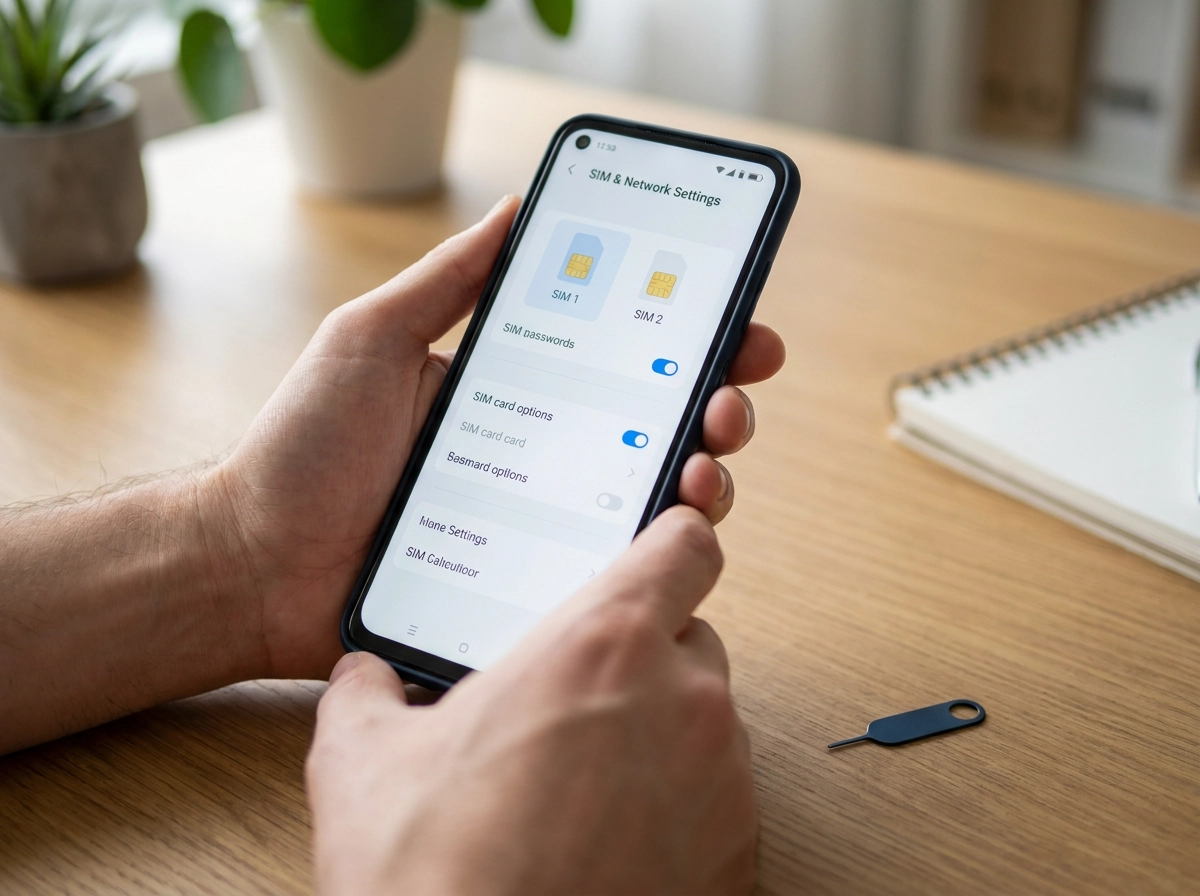
Now switch off mobile data switching (sometimes called smart switch). Leave it on and your phone may quietly fall back to the other line when the eSIM loses signal.
Set data roaming to off on both SIMs unless you are travelling overseas with roaming deliberately bought.
Check per-SIM data usage in your network settings. A line you did not expect to be busy is worth investigating.
Finally, if your build supports it, set a data warning and limit on the eSIM as a backstop against out-of-allowance use.
Data is locked in. Calls and texts come next.
Step 3: Set Calls, SMS and Data Switching
On Android, the same logic applies: set Calls and SMS to your existing number in your SIM settings. Android also offers Ask every time, so you can pick a line per call.
If your EzySim plan includes unlimited Australian calls and texts on eligible plans, set it as the default for outgoing calls and keep your existing number for incoming only.
If calls drop, check whether VoLTE is enabled under your line settings.
Review Wi-Fi Calling settings for each line.
Test it: call your own number, text yourself, and check the call log shows the intended line. Those same lines deliver verification codes, covered next.
Will Your Verification Codes Still Arrive?
SMS now points at your existing number, so what happens to the codes?
Codes follow the sender’s records, not your data line. A bank or government service sends a one-time code to the number it already holds, so with SMS set to your existing line, that is where it lands. Your phone keeps two separate inboxes; it won’t merge them, and it won’t forward an incoming code to the EzySim eSIM.
Test it before you rely on it. Ask for a code from a low-stakes service, with both lines active, and confirm it arrives.
If one goes missing, check that SMS isn’t locked to the eSIM, confirm your existing line has service, restart the phone, then request a fresh code.
Many banking and government apps bind to the device as well as the number, though this varies, so a data-only eSIM beside your live number will often keep logins working, but confirm with your provider if you are unsure.
Next, the switches that stop surprise charges.
The Switches That Prevent Surprise Charges
Now that codes are landing, close the loopholes.
Data roaming and mobile data switching should already be off from the steps above, double-check both before reading on.
On the eSIM, set a device-level data warning or limit so a heavy month shows up before the allowance vanishes.
On the line carrying your number, ask your provider to bar international and premium calls. If a charge is wrong and the provider will not fix it, complain to the Telecommunications Industry Ombudsman (TIO), a free dispute service for residential and small business customers.
Finally, do not assume prepaid sends usage alerts. Check whether your plan type receives TCP Code usage notifications, as they may not apply to all prepaid plans, so check per-line usage in Settings yourself.
Troubleshooting When the Wrong Line Picks Up
Still, the odd hiccup happens. Here’s how to fix each one fast.
- Outgoing calls on the wrong line: set Default Voice Line on iPhone or the Calls preference on Android to the number you want. For a one-off call, just switch lines in the dialler.
- No data on the eSIM: toggle Airplane Mode on and off, confirm EzySim is your default data line, then recheck the APN settings against EzySim’s activation guidance.
- Verification code missing: confirm your existing line is active and set for SMS, restart the phone, then request a new code.
- One line showing No Service: reseat the physical SIM. If the eSIM still won’t register, remove the profile in Settings and re-add it.
- No dual SIM options at all: your handset can’t run two active lines, so decide which number matters more.
Conclusion: The Settings That Do the Work
The four switches set in the steps above, data line, voice line, data switching, roaming, are the ones to protect. Then prove the setup with one test call, one test SMS and a short data session before you trust it with work or banking. Check per-line usage weekly, so an out-of-allowance surprise never happens quietly.
EzySim offers prepaid plans with unlimited Australian calls and texts on eligible plans, eSIM and physical SIM options, no lock-in contracts and online activation, including Sweet at 10GB for $19 and Beauty at 35GB for 30 days. Match your data line to what you actually use.
Frequently Asked Questions
Can I use two phone numbers on one phone with an eSIM?
Yes. Your existing number stays live for incoming calls, SMS and verification codes, while the EzySim eSIM carries mobile data. This works through dual SIM, provided your phone has an EID, is carrier unlocked, and can run two active lines.
What do I need to check before adding an eSIM to my phone?
Look for an EID in your phone's About screen (iPhone) or SIM settings (Android). No EID means no eSIM support. The phone must also be carrier unlocked, or the EzySim profile won't install. Have your EzySim activation details or QR code ready, and leave your existing SIM in its slot and switched on.
Which settings decide how the two lines work together?
Three settings decide everything: the default data line, the default voice and SMS line, and mobile data switching. Data, voice and SMS each have their own selector, so you choose each one yourself.
Will my verification codes still arrive if the eSIM handles data?
Codes follow the sender's records, not your data line. A bank or government service sends a one-time code to the number it already holds, so with SMS set to your existing line, that is where it lands. The post advises testing with a low-stakes service to confirm codes arrive, and checking with your provider if you are unsure about banking or government apps.
What should I switch off to help prevent surprise charges?
Turn off data roaming on both lines unless you are deliberately roaming, and turn off mobile data switching to lock data to the eSIM. You can also set a device-level data warning or limit on the eSIM and check per-line usage in your settings regularly.